How to Get FBR Auth Token for Digital Invoicing in Pakistan
The official PRAL process to register on IRIS, complete sandbox testing, and receive your production token for FBR e-invoicing.
What is the FBR Auth Token?
The FBR auth token (also called the Production Token or Security Token) is a credential issued by PRAL that your invoicing software must include in every API call to FBR's Digital Invoicing system. Without it, you cannot submit invoices, receive IRN numbers, or get QR codes. The token is not issued upfront - you earn it by completing a mandatory sandbox testing phase first.
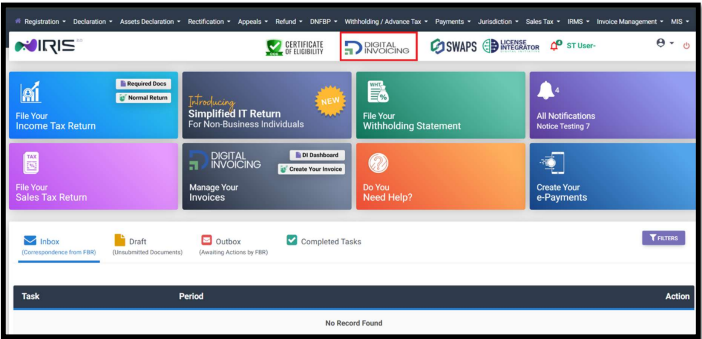
Step 1 - Log in to IRIS and Navigate to Digital Invoicing
Go to the IRIS portal (iris.fbr.gov.pk) and log in using your registration number (NTN) and password. From the dashboard, click on Digital Invoicing in the menu.
Step 2 - Choose Integration Mode
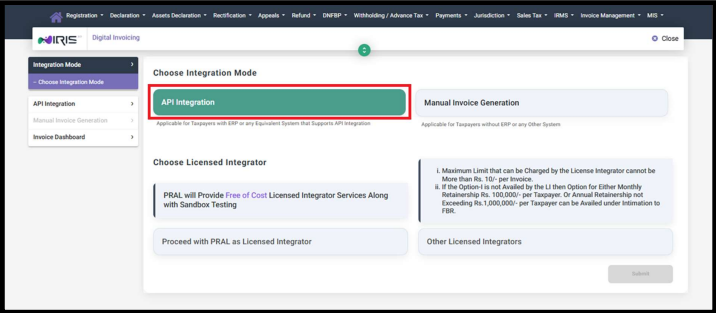
You will land on the Integration Mode screen with two options:
- API Integration - for automated real-time invoice submission (required for e-invoicing compliance)
- Manual Invoice Generation - limited functionality, not suitable for volume invoicing
Select API Integration and proceed to choose a Licensed Integrator.
Step 3 - Choose Your Licensed Integrator
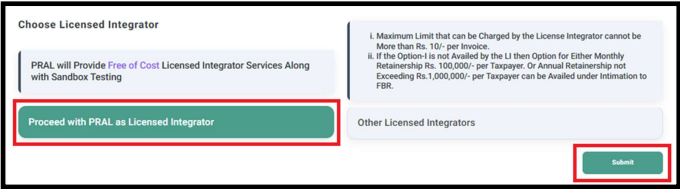
You have two options:
Proceed with PRAL as Licensed Integrator - PRAL provides free integration services including sandbox testing. This is the recommended path for most businesses.Select your integrator and click Submit. The steps below follow the PRAL path, which is the same flow for other integrators except for who handles IP whitelisting.
Step 4 - Provide Technical Details
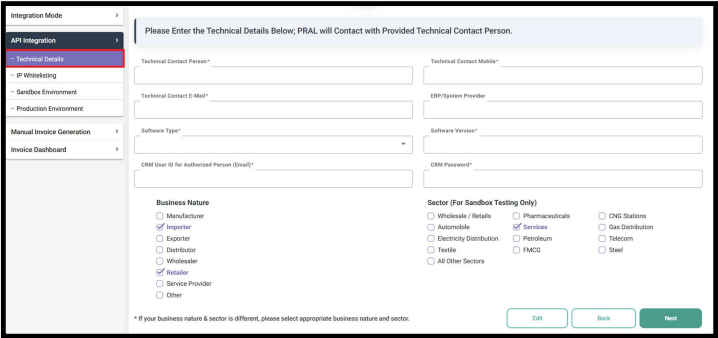
Fill in your technical registration details and click Next:
- Technical Contact Person name, mobile, and email
- ERP / System Provider name
- Software Type (Cloud or On-Premises) and version
- CRM User ID - the email address used to log support tickets in PRAL's CRM
- CRM Password
- Business Nature (multiple allowed) and Sector (select one) - used for sandbox scenario assignment
Step 5 - IP Whitelisting
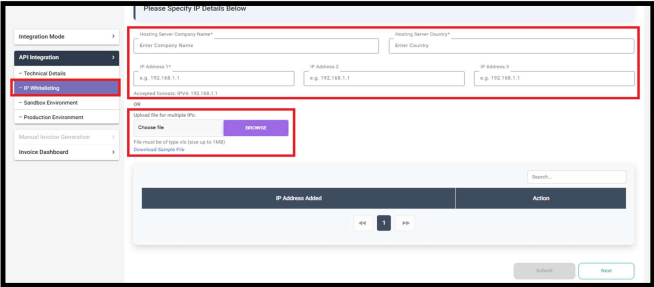
IP whitelisting is mandatory. It ensures only your server can communicate with PRAL's API. Provide:
- Hosting Server Company Name and Country
- Up to 3 IP addresses directly in the form, or upload an Excel file (.xls, max 1 MB) for multiple IPs using the provided template
Click Submit. PRAL's Data Centre will approve or reject your IPs within 2 working hours. Approval automatically activates your Sandbox environment.
Step 6 - Complete Sandbox Testing
Once your IPs are approved, click on the Sandbox Environment tab. Here you will find:
- Web API details (sandbox endpoint URLs)
- Sample JSON invoice format
- Sample code snippets
- Your Sandbox Token to authenticate test API calls
Use the Sandbox Token to post test invoices that match the Business Nature and Sector you selected. You must successfully complete scenario-based test invoices - at minimum one invoice per assigned scenario. The scenarios (e.g. standard rate sales, exempt goods) are listed in the sandbox environment and PRAL's technical document.
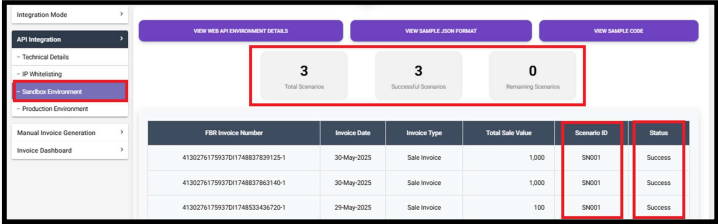
Important: You cannot skip sandbox testing. The Production Token is only generated automatically after all assigned test scenarios are successfully completed.
Step 7 - Get Your Production Token
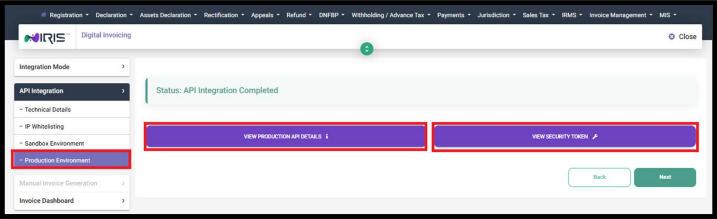
Once all sandbox scenarios pass, the system automatically generates your Production Token. Click on the Production Environment tab to find:
- Production API endpoint details
- Your Security (Auth) Token
Copy this token into your invoicing software. From this point your software can submit live invoices to FBR and receive IRN numbers and QR codes in real time.
Step 8 - Enter the Token in fbrly
In your fbrly account, go to Settings → FBR Integration and paste your Production Token. fbrly handles all API calls automatically from that point - you create invoices and fbrly submits them to FBR, retrieves the IRN and QR code, and attaches them to the invoice PDF.
Getting Support from PRAL
If you run into issues during integration or after going live, use PRAL's Digital Invoicing CRM at dicrm.pral.com.pk. Log in with your IRIS credentials (registration number and password) or with the DI Support option using the email you registered as Technical Contact. Click + New Case, fill in the priority, query type, and description, and attach any supporting PDFs up to 5 MB.
Common Questions
- Is PRAL integration mandatory? No - you can use any FBR-licensed integrator, but PRAL is free.
- How long does IP whitelisting take? PRAL approves or rejects within 2 working hours.
- What if a test invoice fails in sandbox? Use the error code returned to fix the issue. PRAL's technical document has the full error code list.
- How many test invoices per scenario? A minimum of 1 successful invoice per scenario is required to mark it complete.
- Does the token expire? Refer to your PRAL technical documentation for token validity. fbrly handles refresh automatically.
For more context on FBR's e-invoicing rules and deadlines, see our SRO 709 compliance guide and our guide on how IRN and QR codes work.
Start your free trial - once you have your PRAL production token, fbrly gets you live in minutes.